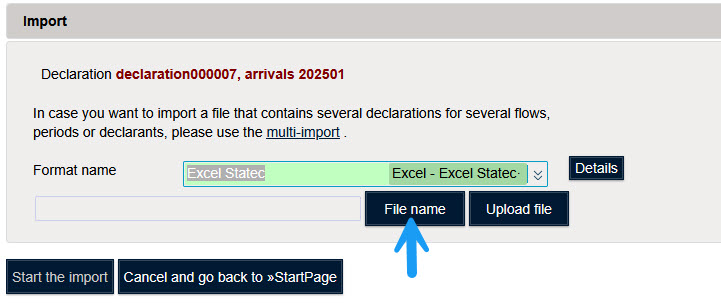
For this example the format name is "Excel Statec".

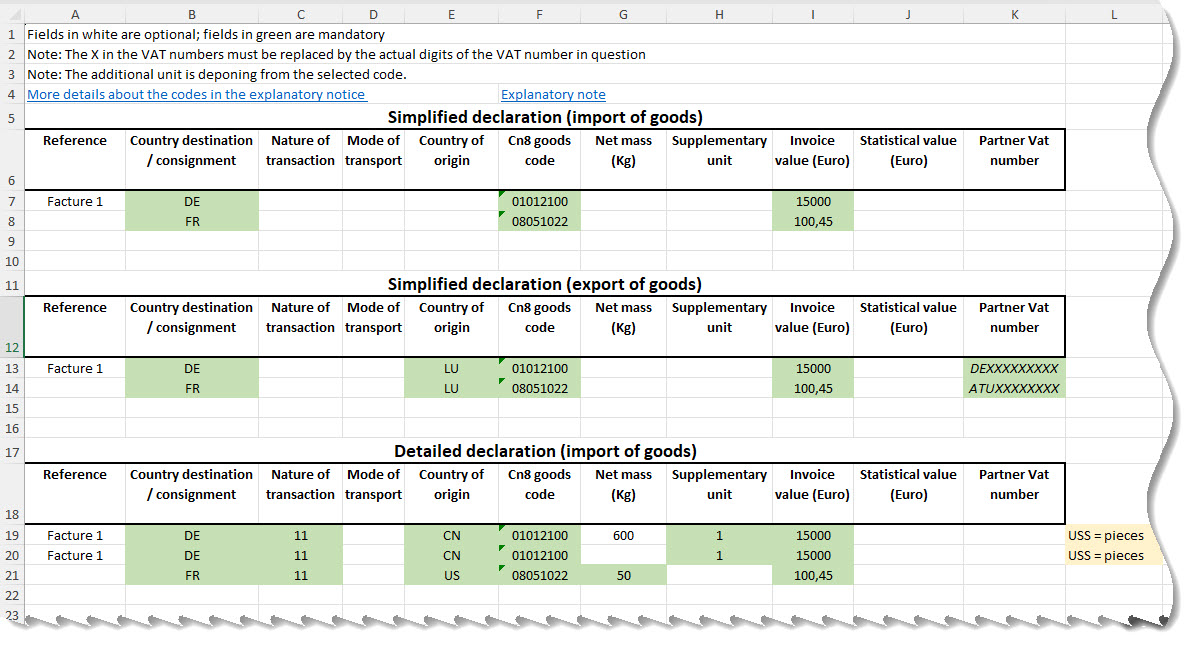
The Excel file that can be downloaded from our site contains two sheets.
Download sample Excel file

The first sheet can be used for data encoding.

The second sheet explains the contents of the different fields depending on the type of declaration to be completed.

In this example, the third-party reporter "Jossa Tiers Declarant" imports a report for his client "Statec".
This information is displayed at the top of Idep.Web.
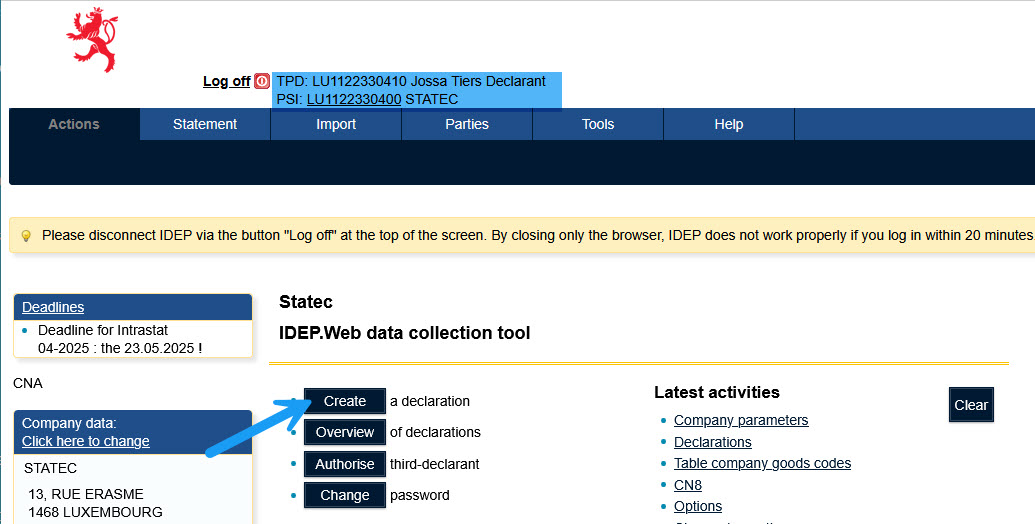
First it is necessary to create a declaration.
Click on "Create a declaration".
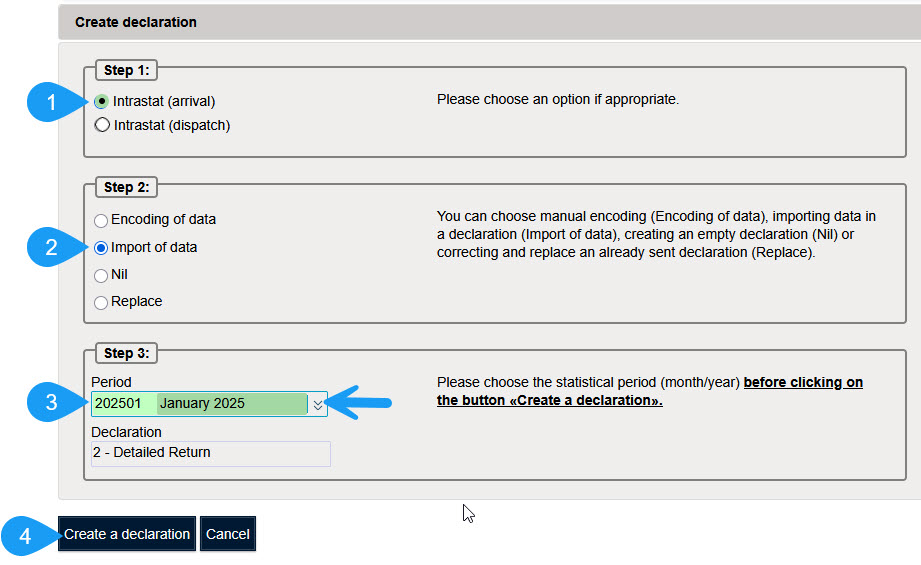
Click on "Create a declaration" to create a new declaration.
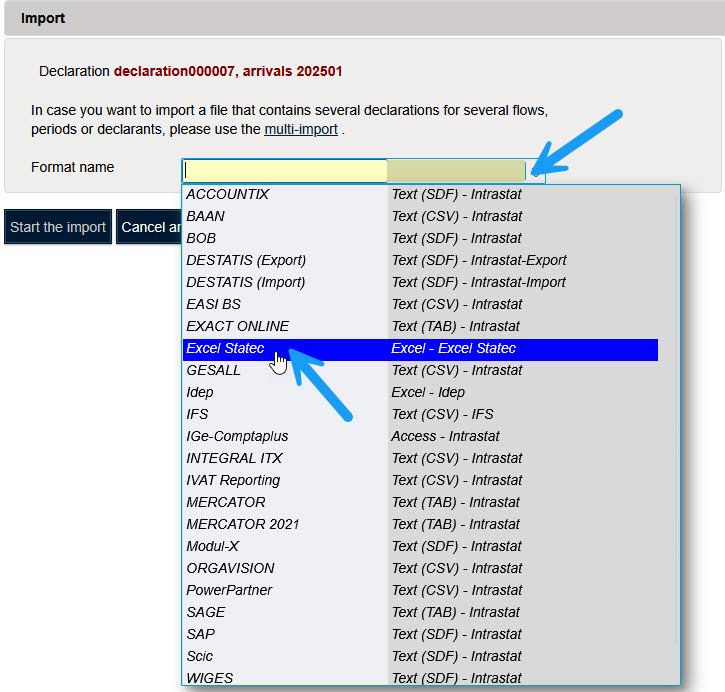
You must choose the correct import format corresponding to the layout of your file.
For this example the format name is "Excel Statec".
Click on "File name" to select the file you want to import.
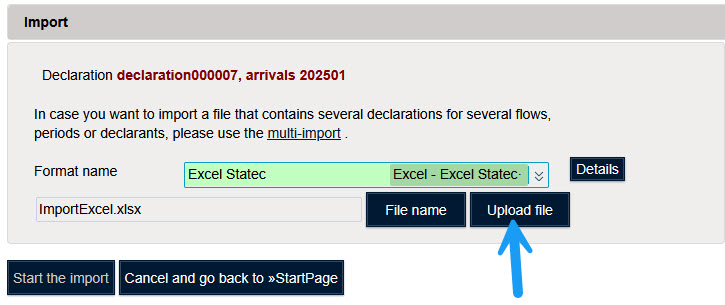
Click on "Upload file" to load the file in memory.
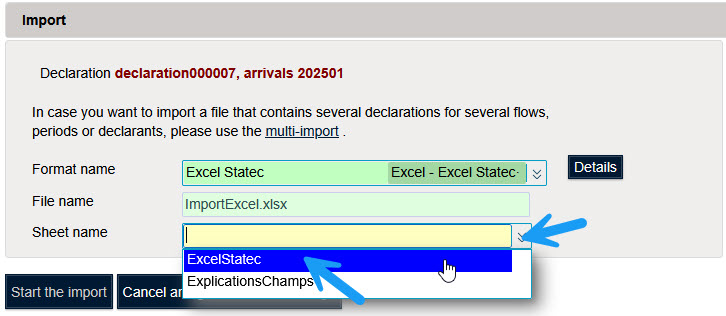
Select the sheet containing the data to be imported.
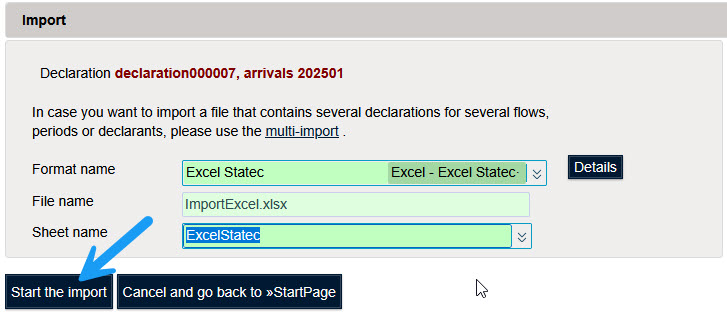
Click on "Start the import" to start importing the data.

Idep displays the message "In progress" when processing the file.

If no error is detected you will get the message "Succesful".
Click on "Successful" to see the details of the import.

If errors were detected you will get the message "With errors".

Click on "With errors" to see the details of the import.

More details are displayed by clicking on the sign "+".
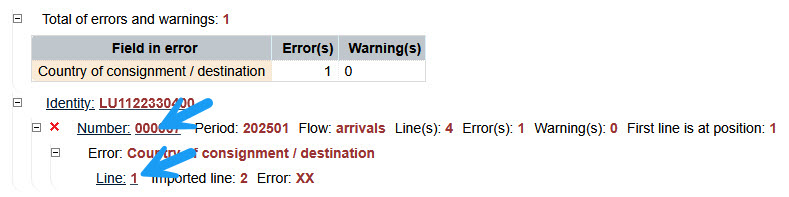
Click on the declaration number to see all the eroneous lines or a line number to see the details of this line.
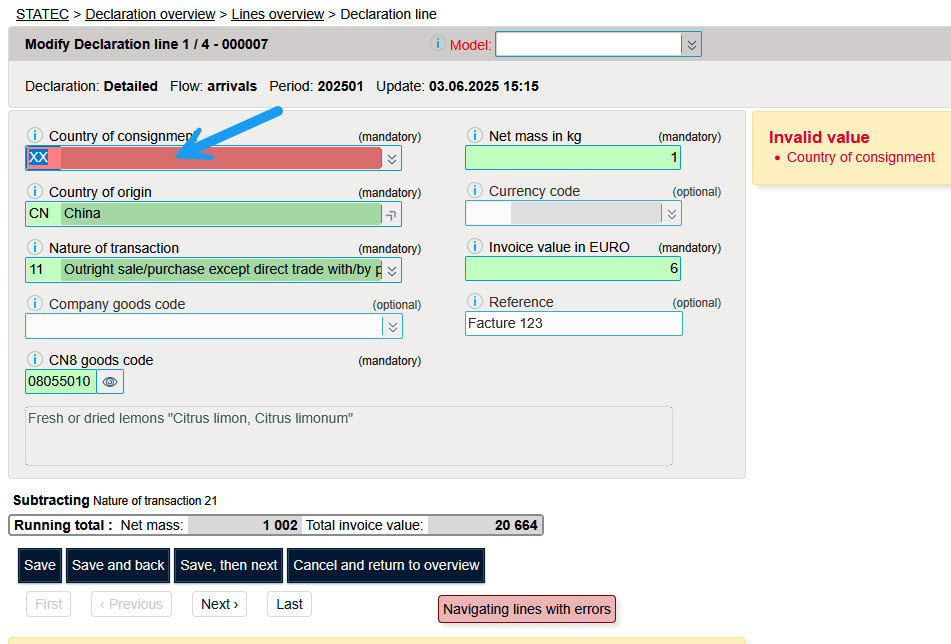
This line contains an incorrect destination country.
Then click on "Save, then next" if the declaration contains several errors.
If the declaration contains no more errors click on "Save and back" to display the line overview.