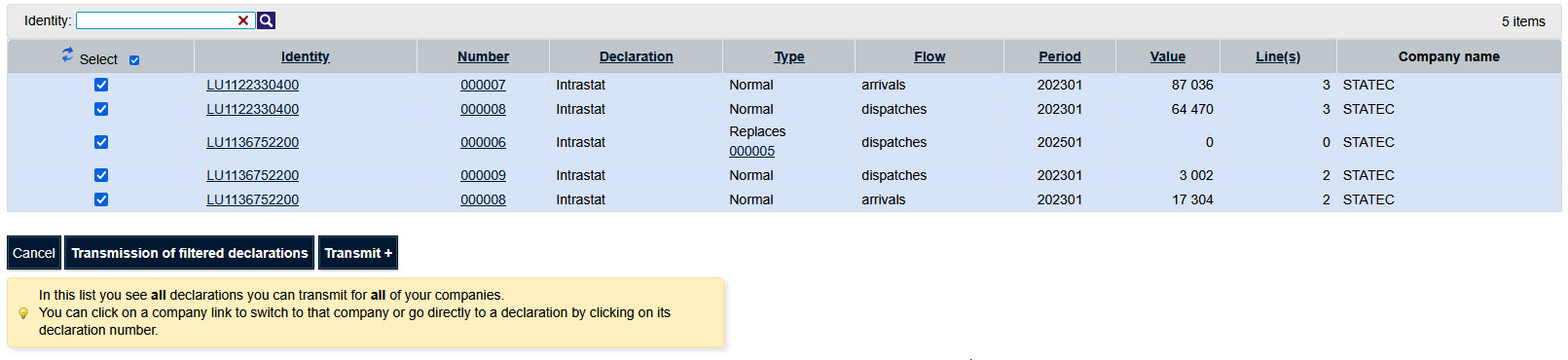

A MultiImport file can contain several declarations for several companies (usable in the case of a third-party declarant); several statistical periods; several Flows.
To start importing, click on the "Import" option "Import".

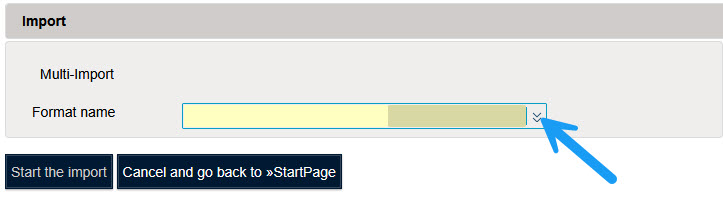
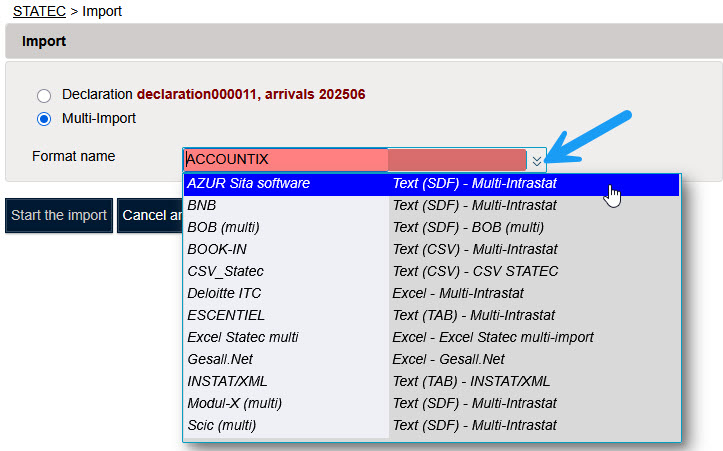
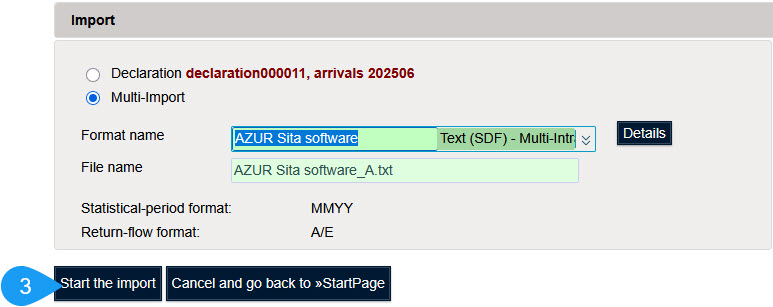
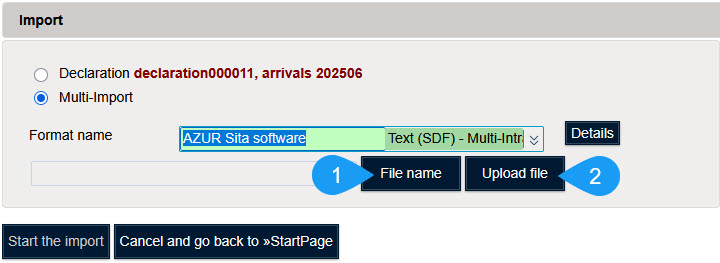
You must choose the format that corresponds to your file.
As an example, import a file from the application "AZUR Sita software".
Click on "File name" to select the file you wish to import.
Click on "Upload file" to load the file into memory.
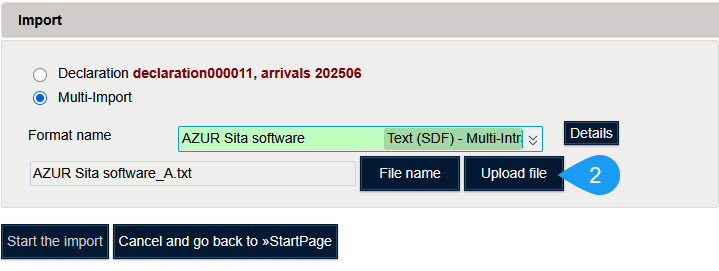
Click on "Start the import" to start data import
Idep displays the message "In progress" when processing the file.

If no error is detected, you will get the message "Successful".

Click on "Successful" to view import details.
If errors have been detected, you will get the message "With errors".

Click on "With errors" to view import details.

More details are displayed by clicking on the "+".

Click on the line number to see details of the line in error.
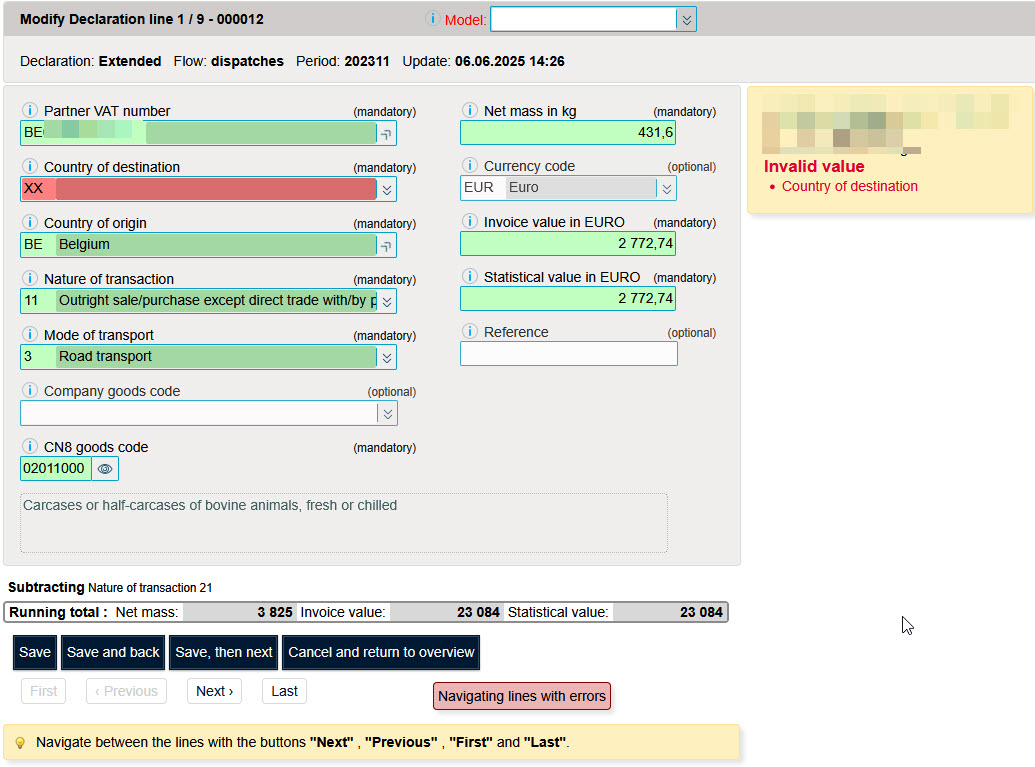
This line contains an incorrect commodity code. You must correct this error.
Then click on "Save, then next" if the declaration contains several errors.
If the declaration no longer contains any errors, click on "Save and stop" to display the line preview.
To redisplay the error report.

It is possible to send all imported declarations with the status "not sent" .
Click on "Return to home page" to return to the declaration overview.
Choose option "Transmit+" of the menu "Actions".